
screenshot any element 제작자: vacantthinker
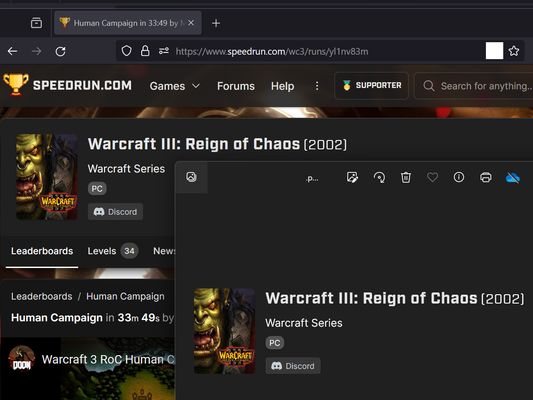
webpage screenshot support: screenshot full page pick one element to screenshot
사용자 28명사용자 28명
확장 메타 데이터
스크린샷



정보
Extension User Guide
📸 1. How to Capture a Full Page
🎯 2. How to Capture a Specific Element
⚠️ 3. Known Limitations
Browser extensions are restricted by standard security architectures and cannot run on native browser pages or official extension stores.
Examples of restricted pages include:
* Official Stores: Mozilla Add-ons Store (
📸 1. How to Capture a Full Page
- Right-click anywhere on the web page to open the context menu.
- Select "Screenshot Full Page" from the list.
🎯 2. How to Capture a Specific Element
- Click the extension icon in your browser toolbar.
- Move your mouse over the specific web element you want to capture. A red selection box will highlight the targeted area.
- Left-click the element. The extension will automatically capture the highlighted area and download it as a
.pngfile.
⏳ Note: Capturing larger web elements or extensive sections may take a few moments to process and download.
⚠️ 3. Known Limitations
Browser extensions are restricted by standard security architectures and cannot run on native browser pages or official extension stores.
Examples of restricted pages include:
* Official Stores: Mozilla Add-ons Store (
addons.mozilla.org).리뷰어 2명이 5점으로 평가함
권한 및 데이터
추가 정보
- 부가 기능 링크
- 버전
- 2026.5.30.1
- 크기
- 12.11 KB
- 마지막 업데이트
- 2달 전 (2026년 5월 30일)
- 버전 목록
- 모음집에 추가