
screenshot any element — vacantthinker
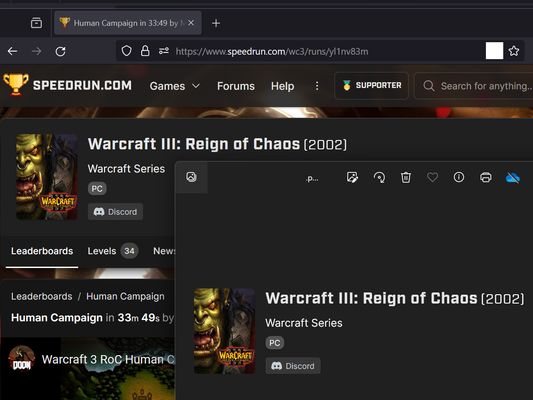
webpage screenshot support: screenshot full page pick one element to screenshot
24 uporabnikov24 uporabnikov
Metapodatki o razširitvi
Posnetki zaslona



O tej razširitvi
Extension User Guide
📸 1. How to Capture a Full Page
🎯 2. How to Capture a Specific Element
⚠️ 3. Known Limitations
Browser extensions are restricted by standard security architectures and cannot run on native browser pages or official extension stores.
Examples of restricted pages include:
* Official Stores: Mozilla Add-ons Store (
📸 1. How to Capture a Full Page
- Right-click anywhere on the web page to open the context menu.
- Select "Screenshot Full Page" from the list.
🎯 2. How to Capture a Specific Element
- Click the extension icon in your browser toolbar.
- Move your mouse over the specific web element you want to capture. A red selection box will highlight the targeted area.
- Left-click the element. The extension will automatically capture the highlighted area and download it as a
.pngfile.
⏳ Note: Capturing larger web elements or extensive sections may take a few moments to process and download.
⚠️ 3. Known Limitations
Browser extensions are restricted by standard security architectures and cannot run on native browser pages or official extension stores.
Examples of restricted pages include:
* Official Stores: Mozilla Add-ons Store (
addons.mozilla.org).Ocena 5 (2 mnenji)
Dovoljenja in podatki
Zahtevana dovoljenja:
- prikazuje obvestila
- dostopa do zavihkov brskalnika
- dostopa do vaših podatkov za vsa spletna mesta
Zbiranje podatkov:
- Razvijalec pravi, da ta razširitev ne zahteva zbiranja podatkov.
Več informacij
- Povezave dodatka
- Različica
- 2026.5.30.1
- Velikost
- 12,11 KB
- Zadnja posodobitev
- pred enim mesecem (30. maj. 2026)
- Sorodne kategorije
- Zgodovina različic
- Oznake
- Dodaj v zbirko