
screenshot any element bởi vacantthinker
webpage screenshot support: screenshot full page pick one element to screenshot
25 người dùng25 người dùng
Siêu dữ liệu mở rộng
Ảnh chụp màn hình

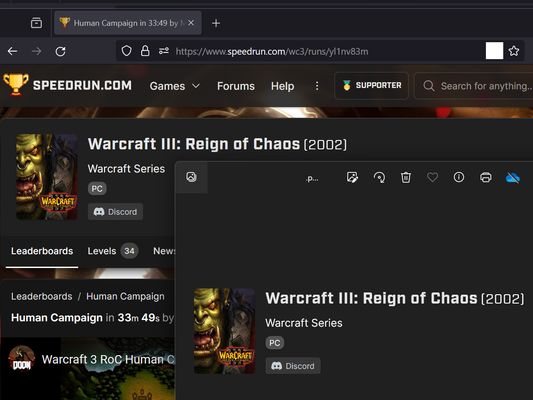


Về tiện ích mở rộng này
Extension User Guide
📸 1. How to Capture a Full Page
🎯 2. How to Capture a Specific Element
⚠️ 3. Known Limitations
Browser extensions are restricted by standard security architectures and cannot run on native browser pages or official extension stores.
Examples of restricted pages include:
* Official Stores: Mozilla Add-ons Store (
📸 1. How to Capture a Full Page
- Right-click anywhere on the web page to open the context menu.
- Select "Screenshot Full Page" from the list.
🎯 2. How to Capture a Specific Element
- Click the extension icon in your browser toolbar.
- Move your mouse over the specific web element you want to capture. A red selection box will highlight the targeted area.
- Left-click the element. The extension will automatically capture the highlighted area and download it as a
.pngfile.
⏳ Note: Capturing larger web elements or extensive sections may take a few moments to process and download.
⚠️ 3. Known Limitations
Browser extensions are restricted by standard security architectures and cannot run on native browser pages or official extension stores.
Examples of restricted pages include:
* Official Stores: Mozilla Add-ons Store (
addons.mozilla.org).Được xếp hạng 5 (bởi 1 người dùng)
Quyền hạn và dữ liệu
Quyền hạn bắt buộc:
- Hiển thị thông báo cho bạn
- Truy cập các thẻ trên trình duyệt
- Truy cập dữ liệu của bạn trên mọi trang web
Thu thập dữ liệu:
- Nhà phát triển cho biết tiện ích mở rộng này không yêu cầu thu thập dữ liệu.
Thêm thông tin
- Liên kết tiện ích
- Phiên bản
- 2026.5.30.1
- Kích cỡ
- 12,11 KB
- Cập nhật gần nhất
- 2 tháng trước (30 Thg 05 2026)
- Thể loại có liên quan
- Lịch sử các phiên bản
- Thêm vào bộ sưu tập